

Documentation Index
Fetch the complete documentation index at: https://docs.kombai.com/llms.txt
Use this file to discover all available pages before exploring further.
Supported skills
| Category | Skill | Link |
|---|---|---|
| Design | Create Wireframes | Know more |
| Design | Create Wireframes Excalidraw | Know more |
| Design | Review Design | Know more |
| Design | Suggest Themes | Know more |
| Design | Improve UI | Know more |
| Design | Generate Image | Know more |
| Design | Generate Video | Know more |
| Web Dev | Improve Accessibility | Know more |
| Web Dev | Improve SEO | Know more |
| Other | Create Architectural Diagram Excalidraw | Know more |
| Other | Create Mermaid | Know more |
Design Skills
Create Wireframes
Kombai uses the Create Wireframes skill to generate wireframes aligned with your specific information architecture and data presentation needs. When you run Create Wireframes, Kombai asks clarifying questions to gather more details about the specific layout options you want to consider. It asks questions to understand your intent, such as:- Primary goal of the page
- Layout structure
- Content density
- Navigation patterns
- Responsiveness priority (Mobile-first vs. Desktop-first)
Create WireframesI want to improve the hero section of the website. Can you create some wireframe options that can match this website’s hero section?Create WireframesGenerate some wireframes for the About section of my website.Create WireframesI need wireframes for an e-commerce product listing page with filters and sorting.Create WireframesGenerate layouts for my blog post page with sidebar navigation and related articles.
Create Wireframes Excalidraw
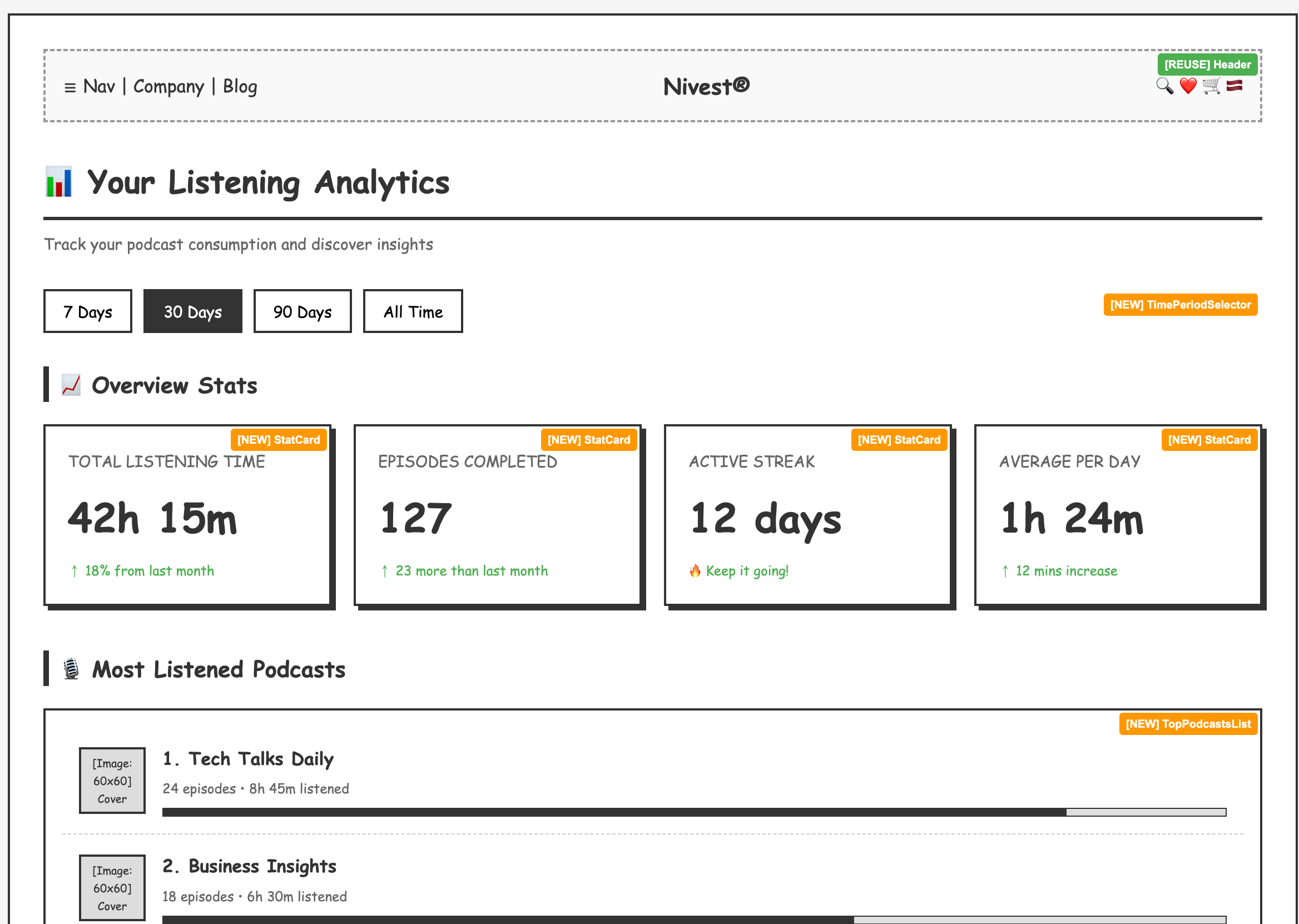
Kombai uses the Create Wireframes Excalidraw skill to generate wireframes as Excalidraw diagrams that you can open, edit, and paste back into Kombai’s chat to continue iterating. See Open Excalidraw diagrams for details. Kombai asks clarifying questions to gather more details about the specific layout options you want to consider. It asks questions to understand your intent, such as:- Page or application type
- Layout structure preference
- Content density
- Navigation patterns
- Responsiveness priority
- Grayscale and low-fidelity: Wireframes are rendered in a simple, sketch-like style using only grayscale tones, keeping the focus on structure and layout rather than visual styling.
- Component annotations: Each section is clearly labeled. Reusable components from your repo are marked with a
[REUSE]badge, while new components are marked with a[NEW]badge. - Realistic content: Wireframes use meaningful placeholder content instead of generic filler text. For example, actual table headers, form field labels, and card descriptions that reflect what the real UI would display.
Create Wireframes ExcalidrawI want to redesign the dashboard layout. Generate some wireframe options.Create Wireframes ExcalidrawCreate wireframes for a settings page with tabbed navigation and form sections.Create Wireframes ExcalidrawGenerate wireframes for a pricing page with comparison tables.Create Wireframes ExcalidrawI need wireframe options for an onboarding flow with a multi-step wizard.
Open Excalidraw diagrams
To open a generated Excalidraw diagram for manual editing:- Hover over the generated diagram to reveal action icons on the top-right corner. Click the maximize icon to open a full preview in a new tab, or click the external link icon to get the Excalidraw link.
- Copy the link, or click the Open button to directly open it in your browser.
- Make your changes — move elements around, resize sections, add new shapes or text, or remove parts you don’t need.
- Once done, drag your cursor to select all the relevant elements of your updated diagram.
- Copy the selection (Ctrl + C on Windows or Cmd + C on Mac).
- Paste it back into Kombai’s chat input (Ctrl + V on Windows or Cmd + V on Mac) and send a follow-up message describing the changes you made or what you’d like Kombai to do next.
Review Design
Kombai uses the Review Design skill to generate a comprehensive review report of the complete UI/UX design of your app. This helps you ensure the design is visually appealing, user-friendly, responsive, and highlights the brand identity. When you run Review Design for a particular page or route, Kombai asks clarifying questions to gather more details about the specific design aspects you want to review. It asks questions to understand your intent, such as:- Purpose of the wireframe
- Specific design aspects to prioritize in review
- Any existing problems that you are already aware of
- Visual Design: Reviews visual fidelity by reviewing color palettes, typography scales, and spacing tokens to ensure the implementation matches the aesthetic intent.
- UX/Usability: Reviews navigation patterns and information hierarchy to ensure logical user flows and intuitive usability across the application.
- Responsive/Mobile: Reviews layout adaptation across various breakpoints, ensuring mobile-optimized layouts and accessible touch targets for handheld devices.
- Accessibility: Reviews compliance with WCAG standards by checking contrast ratios, ARIA attributes, and ensuring full keyboard navigation support with visible focus states.
- Micro-interactions/Motion: Reviews interactive elements to ensure hover states, animations, and transitions are present and fluidly implemented.
- Consistency: Reviews deviations in design usage across multiple pages to ensure strict adherence to your design system and component library.
- Performance: Reviews the design’s impact on rendering, flagging potential bundle size issues and optimization opportunities for a smoother user experience.
Review DesignCan you help me review the settings page layout of my app?Review DesignDo a design review of my website’s testimonial section.Review DesignI need a design review focusing on the mobile responsiveness of my checkout flow.Review DesignReview the overall design consistency across my landing page.
Suggest Themes
Kombai uses the Suggest Themes skill to recommend design options that refresh your project’s look and feel. It offers suggestions to improve readability and structure, helping you fix UI issues and align with your brand identity. When you run Suggest Themes, Kombai asks clarifying questions to gather more details about the specific UI elements you want to improve, e.g., spacing, colors, typography, etc. It asks questions to understand your intent, such as:- Project type (for new themes)
- Specific UI aspects to prioritize in theme suggestion
- Color palette preferences
- Mood of the theme
- Color alignment: Recommends refreshed color palettes when the current ones feel outdated or don’t match the brand, ensuring a cohesive and modern look.
- Typography: Suggests font choices and scaling to resolve issues where text is hard to read or appears unprofessional.
- Spacing and layout: Adjusts spatial relationships to fix interfaces that feel cramped or inconsistent, creating a balanced composition.
- Visual hierarchy: Suggests component styling enhancements to establish clear importance and structure where visual hierarchy is lacking.
- Dark mode: Suggests a robust dark mode implementation where it is currently poor or missing, with options to set Light or Dark as the default preference.
- Audience fit: Suggests refinements to the overall aesthetic so the design language resonates effectively with your specific target audience.
- Theme mood: Recommends configuring the visual atmosphere to match your desired feeling, offering presets such as Professional & Corporate, Creative & Energetic, Calm & Minimal, Luxurious & Premium, Modern & Tech, and Warm & Friendly.
Suggest ThemesI am building an app that’s fitness focused. Can you suggest some themes that will match?Suggest ThemesRecommend color and typography themes for my portfolio website.Suggest ThemesMy landing page feels outdated. Can you recommend modern color palettes and typography?Suggest ThemesSuggest themes with a Luxurious & Premium feel for a high-end e-commerce site.
Improve UI
Kombai uses the Improve UI skill to upgrade your project’s aesthetic quality and interactive feel. It transforms plain or generic interfaces into world-class user experiences by applying professional design principles across typography, color systems, layout structure, and motion, tailored specifically to your app’s unique context. When you run Improve UI, Kombai tries to gather more details about the specific UI/UX gaps you want to address. It may ask questions to understand your intent, such as:- Context Type: The primary purpose of the page (Marketing, Product, Dashboard, Editorial, Portfolio, or Docs).
- Character Targets: Your desired balance of Visual Tension, Kinetics, Information Load, and Flair (rated on a 1-10 scale).
- Existing Gaps: Any specific design problems you’ve already identified.
- Typography & Scale: Upgrading to premium font scales and high-quality typefaces tailored to your context type.
- Color System & Tokens: Replacing generic palettes with neutral bases, refined accents, and advanced shadow diffusion for a modern, polished look.
- Layout Restructuring: Converting basic grids into engaging asymmetric bento grids, zig-zag sections, or split-screen heroes while fixing
h-screenusage. - Flair & Personality: Applying intentional design “edge” through oversized display type, deliberately broken grids, or unique media layering.
- Micro-interactions & Motion: Implementing fluid CSS transitions or spring-physics-based animations for elements that resize or reorder.
- Glassmorphism Upgrade: Replacing shallow background blurs with full refraction for a more premium glass effect.
- Asset & Content Realism: Replacing generic placeholders with realistic figures, contextually relevant names, and high-quality media seeds.
- Interactive States: Adding missing loading skeletons, empty states, and tactile feedback (like
:activescaling) for all interactive elements.
Improve UIUpgrade the generic component defaults with custom radii, shadows, and refined typography to make it look more premium.Improve UIConvert standard feature rows into asymmetric bento grids or alternating zig-zag layouts.Improve UIThe dashboard feels cluttered. Suggest some improvements to the visual hierarchy and spacing.Improve UIAdd more personality and “flair” to my portfolio showcase.Improve UIReview the checkout flow and make the interactions feel more fluid and high-end.
Generate Image
Kombai uses the Generate Image skill to generate AI images from a text prompt. You can configure the model, aspect ratio, and output resolution before generation, and Kombai shows you the estimated cost per image upfront so there are no surprises. When you run Generate Image, Kombai opens an Image Parameters panel where you configure the generation settings:-
Model: Choose from three image generation models:
Model Description imagen 4 Google’s latest image generation model. High quality and photorealistic. nano banana pro A fast, lightweight model optimized for quick iterations. gpt image 2 OpenAI’s image generation model with strong instruction-following. - Aspect Ratio: Select the output dimensions — 1:1, 16:9, 9:16, 4:3, or 3:4 — to match your target use case (social media, hero banners, portraits, etc.).
- Output Resolution: Choose between 1K and 2K output resolution depending on the quality and file size you need.
- Cost estimate: Before you proceed, Kombai displays the estimated cost per image based on your selected model and resolution, so you can make an informed decision.
Generate ImageA minimalist hero illustration of a developer working at a desk with floating code snippets.Generate ImageA dark-themed abstract background with glowing grid lines for a SaaS landing page.Generate ImageA friendly robot assistant waving, suitable for an onboarding screen.Generate ImageA photorealistic product mockup of a mobile app on a smartphone, in portrait orientation.
Generate Video
Kombai uses the Generate Video skill to generate short AI videos from a text prompt. You can configure the model, aspect ratio, resolution, duration, and audio before generation, and Kombai shows you the estimated cost upfront so you know exactly what you’ll be charged. When you run Generate Video, Kombai opens a Video Parameters panel where you configure the generation settings:-
Model: Choose from four video generation models:
Model Description veo 3.1 Google’s flagship video model. High quality and cinematic output. veo 3.1 fast A faster variant of veo 3.1 optimized for quicker turnaround. veo 3.1 lite A lightweight variant for rapid prototyping and lower-cost generation. kling video v3 4k Kling’s 4K video model for ultra-high-resolution output. - Aspect Ratio: Choose between 16:9 (landscape) or 9:16 (portrait) to match your target format.
- Output Resolution: Select 720p, 1080p, or 4k depending on the quality and file size you need.
- Duration: Choose the length of the generated video — 4s, 6s, or 8s.
- Audio: Toggle audio enabled or disabled for the generated video.
-
Reference Image URL (optional): Provide a publicly accessible image URL (ending in
.png,.jpg,.jpeg, etc.) to use as the starting frame or visual reference for the video. -
Cost estimate: Before you proceed, Kombai displays the estimated cost based on your selected resolution, audio setting, and duration:
- 720p / 1080p without audio: $0.20 per second
- 720p / 1080p with audio: $0.40 per second
- 4k without audio: $0.40 per second
- 4k with audio: $0.60 per second
Generate VideoA slow cinematic pan across a futuristic city skyline at night, in 16:9.Generate VideoAn animated logo reveal for a SaaS product, clean and minimal, 4s.Generate VideoA looping abstract background with flowing gradient waves, suitable for a hero section.Generate VideoA short product demo clip showing a mobile app interface in portrait orientation.
Web Dev Skills
Improve SEO
Kombai uses the Improve SEO skill to analyze your project’s on-page and technical SEO elements and generate a detailed report of all crawlability and indexability issues found, along with suggestions to resolve them. When you run Improve SEO for a particular page or route, Kombai opens the URL in the Kombai Browser, interacts with the page, and reads the content, along with performance metrics from the browser dev tools, to analyze SEO issues. Here are the SEO issues that Kombai detects:-
Crawlable anchors: Validates that anchor tags are accessible and indexable, flagging issues like empty hrefs,
javascript:void(0)targets, off-screen positioning, negativetabindex, and more. - Canonical URL: Detects invalid canonical URLs, multiple conflicting canonical URLs, root canonical URLs on subpages, and more.
- Legibility: Audits for visual accessibility, ensuring text meets WCAG contrast standards and maintains legible sizes on mobile viewports.
- Hreflang tags: Detects malformed language codes and non-absolute links in your international SEO tags.
- Link text: Identifies generic anchor text (e.g., “click here,” “read more”) to ensure links provide valuable context for search engines.
-
Search visibility: Validates that the page is technically accessible to search bots by auditing HTTP status codes,
robots.txtsyntax, and exclusion directives (likenoindexor X-Robots-Tag), while also ensuring essential meta descriptions are populated.
Improve SEOCheck if all product pages have proper meta descriptions and canonical URLs.Improve SEOVerify hreflang implementation for our multi-language site.Improve SEOCheck if all the documentation pages are crawlable.Improve SEOCheck for generic anchor text like “click here” and “read more” across the site.Improve SEOVerify that robots.txt and meta tags are not blocking important pages from indexing.
Improve Accessibility
Kombai runs the Improve Accessibility skill to analyze your project’s accessibility based on WCAG 2.0, 2.1, and 2.2 accessibility standards and generate a report of the issues found, along with suggestions to resolve them. When you run Improve Accessibility for a particular page or route, Kombai opens the URL in the Kombai Browser, interacts with the page, and reads the DOM element code from the browser dev tools to analyze accessibility issues. Under the hood, Kombai uses the Axe-core engine to detect accessibility issues. Here are a few examples of accessibility issues that Kombai detects:- ARIA attributes: Validates that elements only use ARIA attributes supported by their specific role (e.g., ensuring a heading doesn’t have a checkbox attribute).
-
Keyboard scrollability: Identifies scrollable containers missing a
tabindexattribute, which prevents keyboard-only users from accessing hidden content. -
Video captions: Verifies that
<video>elements include caption tracks, ensuring content is accessible to users with hearing impairments and indexable by search engines. - Touch target size: Ensures interactive elements (buttons, links) are large enough and spaced appropriately so mobile users can tap them without accidentally hitting neighboring elements.
- Image alt text: Detects images missing alt attributes or valid presentation roles, which are critical for accessibility compliance.
Improve AccessibilityCheck if all form inputs have proper labels and ARIA attributes.Improve AccessibilityCheck for color contrast issues and add missing alt text to the homepage images.Improve AccessibilityVerify that our modal dialogs are keyboard navigable and screen reader friendly.Improve AccessibilityCheck if the/blogpage is fully accessible with proper headings and ARIA attributes.
Other Skills
Create Architectural Diagram Excalidraw
Kombai uses the Create Architectural Diagram Excalidraw skill to generate architectural diagrams as Excalidraw diagrams that visualize your system’s architecture, data flow, component relationships, or infrastructure layout. The generated diagrams are fully editable. See Open Excalidraw diagrams for how to open, edit, and paste them back. When you run Create Architectural Diagram Excalidraw, Kombai analyzes your project structure — scanning for services, modules, APIs, routes, infrastructure configuration files (Docker, Kubernetes, Terraform, etc.), external services, databases, and third-party integrations. It then asks clarifying questions to understand:- Diagram type (system overview, data flow, infrastructure, component/module, or sequence diagram)
- Level of detail (high-level overview, medium, or detailed)
- Scope (full system, frontend only, backend only, or a specific subsystem)
-
Professional color coding: Components are color-coded by type for easy identification:
Component Type Color Frontend Light blue Backend services Light green Databases Light orange External services Light purple Infrastructure Light gray - Labeled connections: Arrows are labeled with protocols and communication methods (HTTP, gRPC, WebSocket, etc.) to show how components interact. Port numbers and endpoints are included where relevant.
- Logical layout: Components are arranged in logical layers (presentation → application → data) with consistent flow direction, minimized arrow crossings, and boundary boxes grouping related components.
- Clear annotations: Each component is labeled with its name and type, with brief descriptions where helpful.
Create Architectural Diagram ExcalidrawGenerate a high-level system architecture diagram for my project.Create Architectural Diagram ExcalidrawCreate a data flow diagram showing how user requests move through the backend.Create Architectural Diagram ExcalidrawVisualize the infrastructure and deployment setup of my app.Create Architectural Diagram ExcalidrawGenerate a component diagram showing the frontend module dependencies.
Create Mermaid
Kombai uses the Create Mermaid skill to generate diagrams using Mermaid syntax. Mermaid diagrams are rendered as interactive visual diagrams directly in Kombai’s chat, making them easy to review at a glance. You can follow up with Kombai to iterate on the diagram, modify the structure, add or remove nodes, or change the diagram type. Here are some examples of Create Mermaid:Create MermaidGenerate a sequence diagram showing the authentication flow in my app.Create MermaidCreate a flowchart of the checkout process.Create MermaidVisualize the database schema as an ER diagram.Create MermaidGenerate a diagram for the models in my project.